Tuesday, February 28, 2012

HelloSlide -


HelloSlide is a website that gives life to your presentations.
It helps you share your message more effectively, by adding voice on top of your slides. Instead of recording your voice, just type the speech,
and HelloSlide generates the audio automagically.

It's simple:

1.    Upload a PDF of your slides to our website.
2.    Type the speech for each slide using our editor.
3.    Press play to hear your presentation.
Once you type the speech for your slides, you can:
1.    Edit the speech until it's perfect.
2.    Make it available in 20 different languages, “automagically.”
3.    Make your presentation more visible on the web, because search engines will index the speech in your presentation.

Q. How do I register for HelloSlide?

In the sign up page, enter your email and pick a password. they'll send you a email with a link that you can click to complete your registration. That's it!
There is a Free version or you may pay for addition storage

Q. What file formats do you support?

For now, you can only upload your presentation in PDF, but we will soon support other formats.
If you created your presentation in PowerPoint or Keynote, you can export it to PDF:
Q. Is there a size limit for each upload?
Yes, your PDF must be smaller than 100 MB.
Q. How do I add a voice to my presentation?
After you upload your PDF to our website:
1.    Press the edit button in the top toolbar.
2.    Type the speech for each slide.
3.    Hear the result by pressing play in the top toolbar. There's also a preview button to hear the speech for just one slide.

Tuesday, February 21, 2012

Globaloria

This is a site of learning games made by students! 
I played the BONES game.  Could be used with Health, Science or just for fun!  There are all kinds of games for Punctuation, Civics, Environmental, Social Issues, Government, STEM and Music.  When you are at the homepage, click on the MORE GAMES button and you will be able to search by Subject, Filter by Groups and Sort by Alphabetical or Popular or Newest or Oldest.
This is Creative Commons offering Web 2.0 creative resources for learning. 
Globaloria holds three annual student Game Design Competitions (STEM, Civics & News Literacy, and Globeys) to celebrate excellence in game design and motivate students to dig deeper and go further in their learning while honing real-world skills. The competitions are launched in the fall and awards are given in the spring.  Globaloria launched in 2006, has been implemented with 5000 students and educators within 80 schools in seven states.  Some of you may wish to apply to incorporate Game Design Competitions.  Check the website for details.   http://www.globaloria.org/intro#WhatIsGlobaloria

We all have access to the games
that have been created!!

Tuesday, February 14, 2012

Wordle - Word Cloud


is a tool for generating “word clouds” from text that you provide. The clouds give greater prominence to words that appear more frequently in the source text. You can tweak your clouds with different fonts, layouts, and color schemes. The images you create with Wordle are yours to use however you like. You can print them out, or save them to the Wordle gallery to share with your friends.

From the blog, I (heart) EdTech, here is a 7 minute EdTech Tutorial you will learn how to use Wordle, see what you can make with Wordle, and walk away with great integration tips and ideas.  Whether you teach at the elementary or collegiate level, mathematics or language arts, Wordle is a fun and free web tool you can use to engage your students and spice up your lesson plans. 
How To Use Wordle In the Classroom:

Tuesday, February 7, 2012

MathPickle


Math Pickle - Math Videos and Exercises for K-12
Math Pickle is a nice site for locating videos and exercises appropriate for teaching a variety of mathematics concepts at a variety of grade levels. When you visit Math Pickle you can browse for videos by grade level. Once you've selected a grade level you can then refine your browsing to a particular concept. Each concept has a demonstration video and links to Keynote and Powerpoint files for teachers. Each concept also has links to PDF worksheets that you can download and print.
Across the top is a menu:
Be sure to check out what else is on this website....Under Muse---a Blog;  Puzzle Books - about Math;  and Inspired People is about Mathematicians! 
In the Classroom: 
For mathematics teachers looking for material to include in their next lesson plan, Math Pickle could be a handy resource.

Tuesday, January 31, 2012

Bubbl.us - BrainStorming & Mind Mapping Online


Bubbl.us is a mind-mapping product aimed towards  anyone who needs help organizing their thoughts or any untidy information. Powered by Flash, Bubbl.us makes it easy for anyone to quickly start planning and sorting out their ideas through the use of linked text bubbles. Each bubble of information is connected to its preceding parent bubble and color coordinated accordingly for hierarchy sake. Using the mouse wheel or the side tool bar allows for easy zooming in and out of your mind-maps. Also added to the tool bar is workspace positioning and setup styles, however most will find that holding the left mouse button and dragging is a much more convenient way of moving around the work area.

How to Use Bubbl.us on YouTube :

Tuesday, January 24, 2012

Read Cube


is a desktop application, for Windows and Mac, that is designed to help students organize their research. Read Cube provides a place for students to save and annotate scholarly documents. Through Read Cube students can search Google Scholar and Pub Med. Students can also import to Read Cube PDFs that they find elsewhere. The video below offers a short overview of what Read Cube can do.


Classroom Use:
When you download Read Cube, it will ask you for your university email. Don't be discouraged by that, I was able to register using my K-12 school email account. But the fact they ask for your university email account is an indication that Read Cube is clearly targeted to a higher ed audience. Still, Read Cube could be useful for some high school students working on long-term research assignments. You might also consider using it yourself for your next continuing education course.


Tuesday, January 17, 2012

GameUP from BrainPOP


In June 2011, BrainPOP launched GameUp™,
a collection of free online game titles that tie right in to curriculum.
Check out the Game titles below:

Health Games:
Pavlov's Dog
Control of the Cell Cycle
The Diabetic Dog Game
Blood Typing
Microbes
Immune System Defender
Cell Command


Math Games:
Dig It
Battleship Numberline
Food Fight


Science Games:
Close-Knit Neighbors
Pavlov's Dog
Alernative Energy Source
Control of the Cell Cycle
Life Preservers
Chronopticon
Fly to Mars
Microbes
Matter Sort
Build a Solar System
Food Fight


Social Studies Games:
Executive Command
Court Quest
Law Craft
Branches of Power
Argument Wars


AND there are
STUDENT-MADE GAMES
OR
You can Make Your Own!

Check It OUT!!!

Tuesday, January 10, 2012

NOTA - Collaborative Web Platform


Nota is casual collaboration.   
Welcome to Nota!   http://notaland.com/
Nota is a unique, cutting-edge collaborative web platform that allows users to create, share and collaborate on presentations and virtually any other form of online material. Using Nota’s proprietary toolset, users can instantly integrate text, video, maps, clip art, photos from web album or on the local computer, or license-free images from Flickr, and material from an ever-expanding array of sources. Users can then instantly embed their work in Facebook or blogs, and can share and collaborate with friends.

This reminds me of glogster!  Although to me, glogster is easier to use with students. One may wish to give this site a try also!

Quick Guide to using NOTA:   http://notaland.com/howto
  • It's easy to use, even for someone with no computer experience.
  • Fast load times mean near instant co-creation.
  • Embed anywhere including your blog and social networks - and it automatically pushes changes to all of these in real time.
  • Also, it is purpose-built to work well with touch interfaces.


Wednesday, January 4, 2012

Triptico - 23 Interactive Resources

Welcome to the Triptico website.

The Triptico resource application currently contains 23 different interactive resources - all of which are easy to edit, adapt, save and share.   ALL FREE!

You can access them all with one simple download... everything is completely free - and you will receive updates whenever new resources are added! 

A variety of excellent classroom resources are available from Triptico. They work very well on the Interactive Whiteboard.

Note that Triptico resources are now accessed from a desktop application, free to download, so an Internet connection is not required to use the resources.

New resources are being added to the desktop application.

On starting the desktop application one is automatically notified if an update is available with any new resources added to the library.

Find10 was added in December for example.

Try Find 10, perhaps as a starter. This allows you to show 15 statements, 5 of which are incorrect, students have to find the 10 correct statements.


Because Triptico is an application that runs in your computer (it runs on Adobe Air, so it’s compatible with both Macs and PCs), it can be used with any make and model of interactive whiteboard.

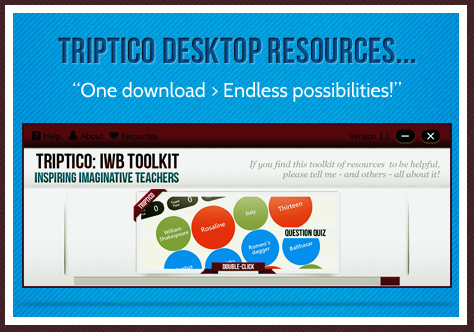
From there you can easily navigate to any of the different interactive activity makers and you can then customise your own activities to suit your subject and lesson. As you can see, the resources on offer are often game-show inspired and range from (relatively) simple timers, image spinners and student selectors to games, quizzes and text analysis tools. The screenshots below give you an idea of the plethora of classroom-based interactive activities available:


Tuesday, December 13, 2011

Edistorm - Virtual Sticky Notes

Edistorm
Edistorm takes away the idea of sticky notes on a wall and makes it virtual. Brainstorm, think out ideas alone or with friends; plan out anything you like with Edistorm. Use virtual sticky notes in Edistorm to come up with a multitude of ideas all on one site.  There is also an APP available for smart phones.

View an introductory video:
http://www.edistorm.com/users/welcome

On the surface, Edistorm reminds me of WallwisherEdistorm has some additional features and abilities that make it very useful in the classroom.  Just like Wallwisher, you brainstorm and collaborate using virtual sticky notes.  Edistorm gives you a place to organize ideas in a real-time interactive wall.  Virtual sticky notes can each have their own color and can be organized in vertical or horizontal groupings.  Edistorms can be created independently or with others in a collaborative effort.  Edistorm features an idea bot that works at the bottom of the screen offering suggested ideas based on what students add to the sticky notes in the work space.  There are a variety of bots including a rhyming bot, thesaurus, and related words.  Creating public and solo storms is always free. Creating private storms requires a subscription.
  
Edistorm in the classroom: Edistorm offers an opportunity for students to brainstorm, collaborate, and group ideas.  Students can use Edistorm to brainstorm ideas for writing, research, for grouping ideas, and collaborating on group projects. Create an Edistorm for your students and ask them to group like ideas, sort, and expand on thoughts.  This could be done for any historical event, literature, science concept, and even phonics.  Students could practice spelling by typing out their spelling words along with a sentence or synonyms on sticky notes.  Then, they can group words by spelling pattern or common phoneme blends.  Create an Edistorm of sticky notes with English words and sticky notes with a foreign language word on them.  Students can work together to group words with their meanings.   In math, create Edistorms with word problems on one color of sticky note and answers on another set of sticky notes.  Students can work to create groups of problems and their solutions.  Edistorm can be used for whole class activities using an interactive whiteboard, the class can brainstorm together and collect ideas or use the grouping feature in an activity created by the teacher or students.
Tip: Edistorm requires an email address for sign up.